Device settings
Each device has its own settings page. Open it from the device’s menu on the trips sidebar or the dashboard. The page covers identity, home zones, Wi-Fi networks, details, and sharing, plus the subscription card.
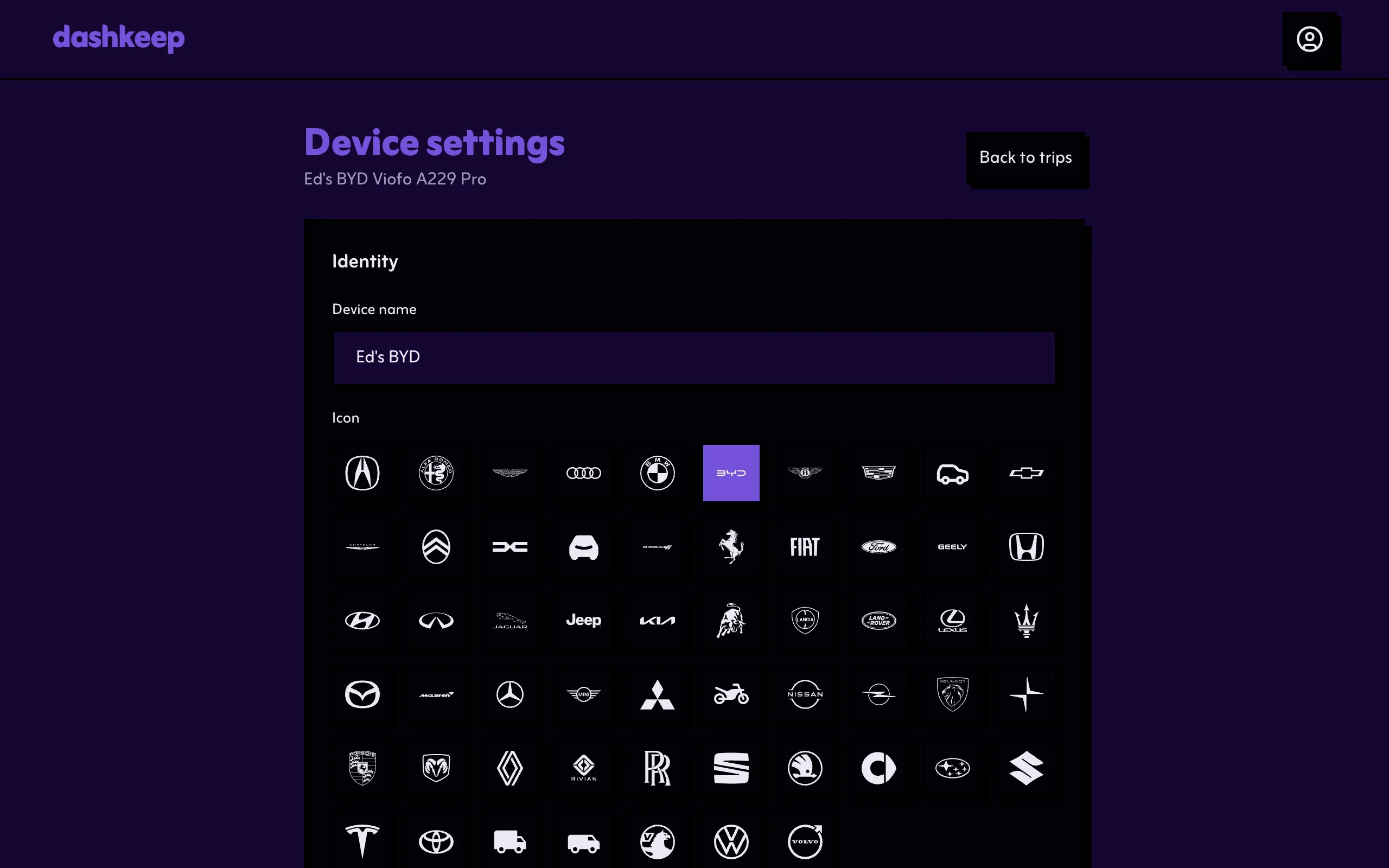
Identity
Section titled “Identity”The device’s name, icon, and colour, exactly as you chose them during the setup wizard. These only change how the device looks on the dashboard, and never affect your footage or your plans.
Home zones and Wi-Fi networks
Section titled “Home zones and Wi-Fi networks”The camera only uses Wi-Fi inside your home zones, and each device has its own list of networks and its own order for trying them. Both live next to each other on the settings page. Each has its own page:
- Home zones explains the geofences where the camera switches its Wi-Fi on, and the dropdown deciding whether clips recorded inside them upload.
- Wi-Fi networks explains the upload queue and how to reorder it.
- Always-on Wi-Fi explains the in-vehicle network option that keeps the camera connected away from home, with tracking, live view, and optional backups on the road.
Details
Section titled “Details”The card shows whether the device is active or inactive, the last time the camera connected, the date it joined your account, and the agent and launcher versions it runs. If someone shares the device with you rather than you owning it, this card also has the Leave device button.
Subscription, storage, and sharing
Section titled “Subscription, storage, and sharing”- Subscription shows the plan and its state, with a link to Stripe’s portal to manage payment.
- Ultra HD storage shows the 12-hour quota bar: stored footage in purple, protected footage in amber, and the point where the oldest clips can start rotating out.
- S3 mirror storage (cloud devices) mirrors your uploads to your own S3-compatible bucket. Adding, changing, or removing it regenerates the device key and sends you to the download-to-SD flow. Ordinary settings saves never need that file again. See S3 mirror storage.
- Sharing invites other people to this device with specific grants. See Sharing a device.
- Community storage replaces the cloud card for community devices: your own S3 bucket configuration. See Connecting your device.
See Subscription and storage for how the quota and the archive work.
Saving changes
Section titled “Saving changes”Select Save changes when you’re done. DashKeep delivers the new settings over the air. The camera picks them up the next time it boots or checks in. A change made while you drive usually arrives the next time the car starts.

The settings page also has three owner-only buttons for work on the camera’s memory card:
- Reinstall DashKeep and Update firmware both open the reinstall flow. It runs the full install over the card again: a fresh patched firmware, the newest DashKeep app, and a rebuilt configuration. Use them after a card format, a card swap, or to bring the camera up to date. It’s covered on its own page: Reinstall and update.
Download to SD Card (Advanced)rebuilds only thedashkeep.datconfiguration file and downloads it, mainly for when the Wi-Fi networks or home zones changed and the camera can’t connect to pick them up. It’s covered on its own page: Download to SD card, advanced.
If someone shares the device with you and you lack the change-settings grant, you can read everything here. DashKeep hides the save button and shows the reason on the page.