Download to SD card, advanced
The camera stores its configuration in a file called dashkeep.dat at the root of its memory card. The file contains the device key the camera uses to identify itself to the cloud, its Wi-Fi networks, its home zones, and its name and identity.
If the file is missing or damaged, the camera can’t talk to your account any more. That happens after a card format, a card swap, or a failed write. The cloud can’t hand the original key back. For security, the server only ever stores a fingerprint of the key, never the key itself. The fix is to create a fresh key and write a complete new configuration to the card. The settings page does this for you.
When to use it
Section titled “When to use it”- The corner logo on the camera turns red, and the camera shows a configuration-missing restore screen.
- You replaced the memory card, and the new one has no
dashkeep.daton it. - The camera hasn’t connected since a card problem, and you can’t see another cause.
- The Wi-Fi networks or home zones changed, and the camera can’t connect to pick the new settings up.
- You added, changed, or removed an S3 mirror on a cloud device. The settings page sends you here automatically because the device key changes with it.
This page rebuilds the configuration file only. When the whole install has gone from the card, after a format or a swap, use the reinstall flow instead: Reinstall and update. It also covers updating the camera to the newest firmware and app.
Before you start
Section titled “Before you start”The warning on the dialog is exact. The download regenerates your device key. Your dashcam can’t connect to DashKeep until you replace the dashkeep.dat file on the SD card with the new one.
Between the moment you confirm and the moment the new file is on the card, the camera has no access to the cloud. There’s no half-way state: finish the swap the same day you start it.
If you use the Community Edition with your own S3 bucket, re-enter your S3 credentials on the same settings page after replacing the file. The stored copy uses the previous device key for its seal. The new file needs a fresh seal.
If you use S3 mirror storage on a cloud device, adding, changing, or removing the mirror also regenerates the device key. The settings page sends you here automatically and hands your browser the fresh key before the S3 form opens. Other settings saves never need this page again: the device merges them over the cloud.
Creating and downloading the file
Section titled “Creating and downloading the file”-
Open the device’s settings page.
-
Select
Download to SD Card (Advanced).
-
Read the warning, then select Download
dashkeep.datto confirm.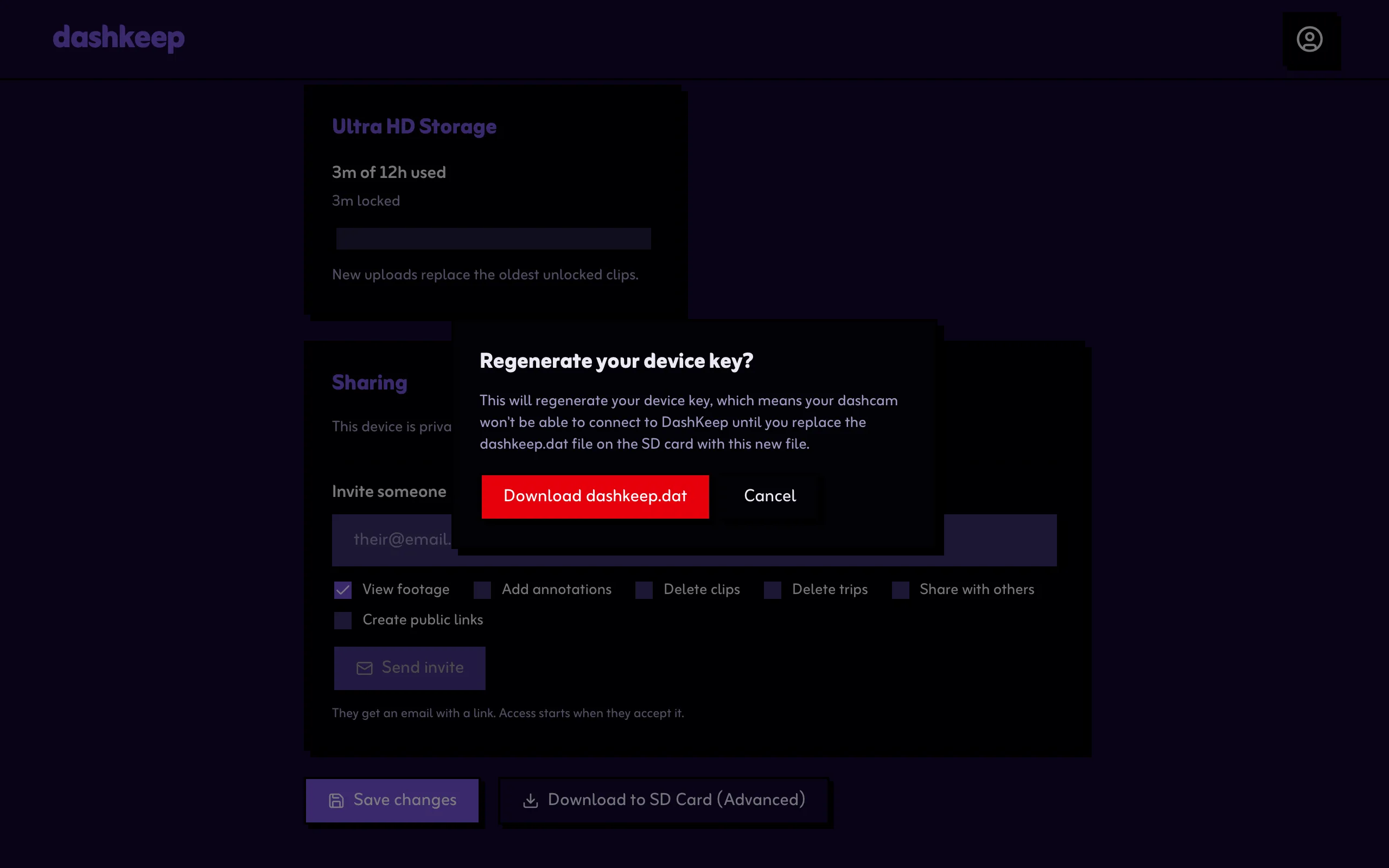
-
The page saves any unsaved edits, creates the new device key, and builds the complete configuration file. Your browser downloads it as
dashkeep.dat. -
The page shows what to do with the file:
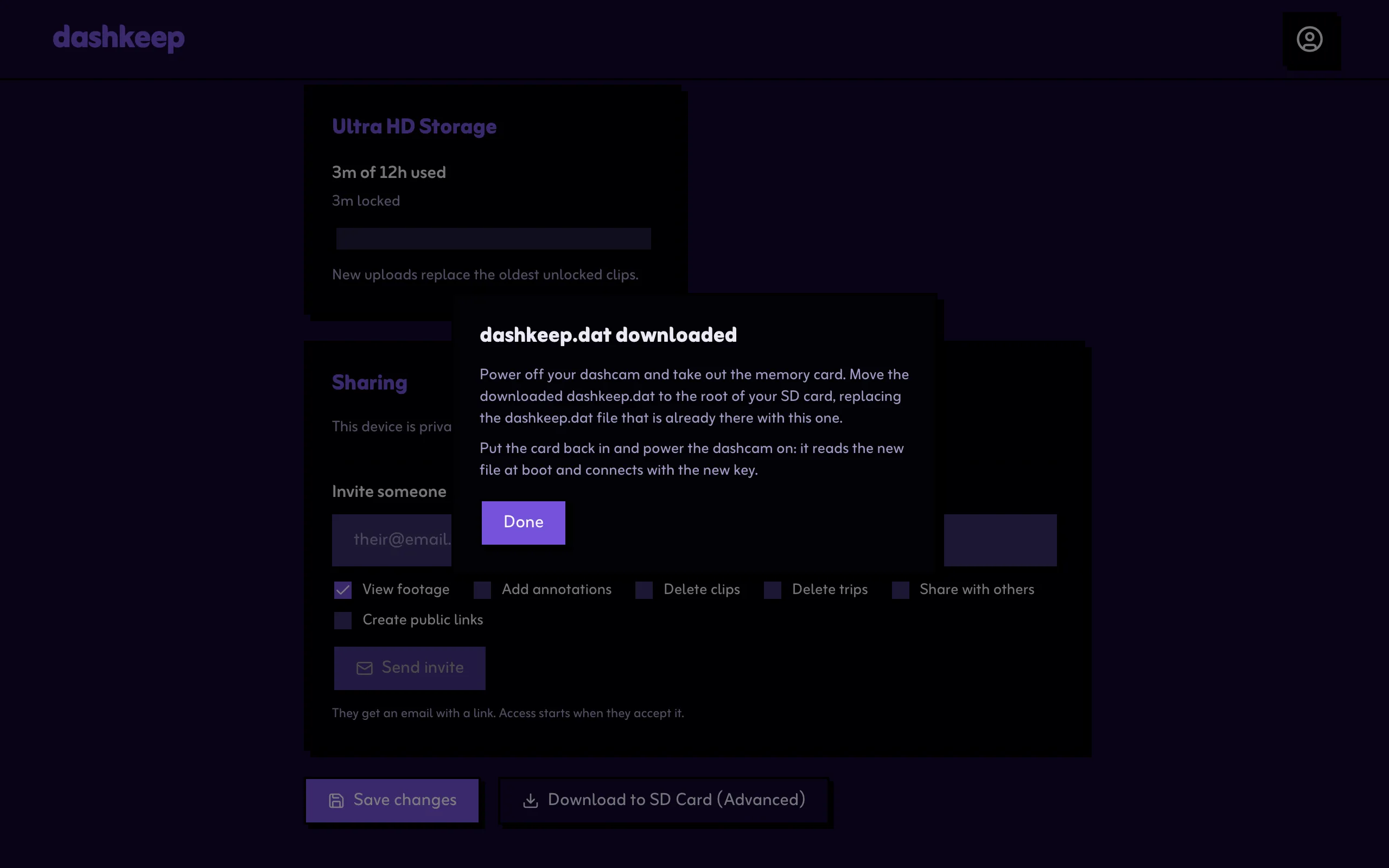
Replacing the file on the card
Section titled “Replacing the file on the card”- Power the camera off and take the memory card out.
- Put the card in your computer.
- Move the downloaded
dashkeep.datto the root of the SD card, not into any folder. Replace thedashkeep.datthat’s already there. If the card is new and the file isn’t there yet, that’s fine. The downloaded file goes straight to the root. - Put the card back in the camera and power it on.
The camera reads the new file as it boots, connects with the new key, and your device is live again. Your footage, trips, subscription, and sharing don’t change, because the device itself is the same.
If you selected it by accident
Section titled “If you selected it by accident”Selecting the button again and completing the download is always safe. Each download is a complete, working file, and the camera uses the newest file on the card. An abandoned download, one you confirmed but never put on the card, leaves the camera unable to connect. Complete a fresh download and swap to fix it.