Trips and clips
The trips page is where your footage ends up. Pick a device, pick a day, and open the drive you want. Each view has its own link in the address bar. You can bookmark a device, a day, or one trip and come straight back to it.
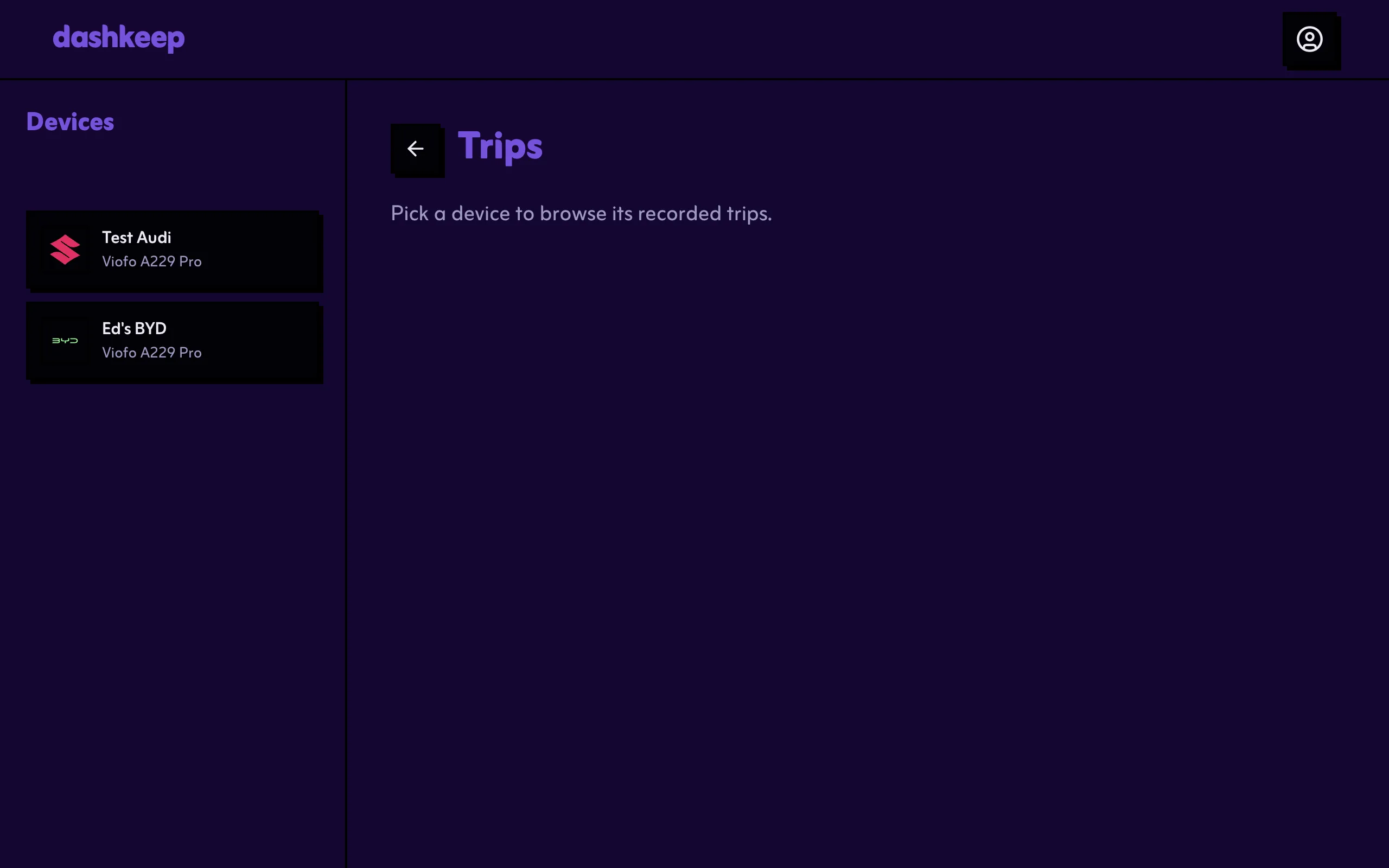
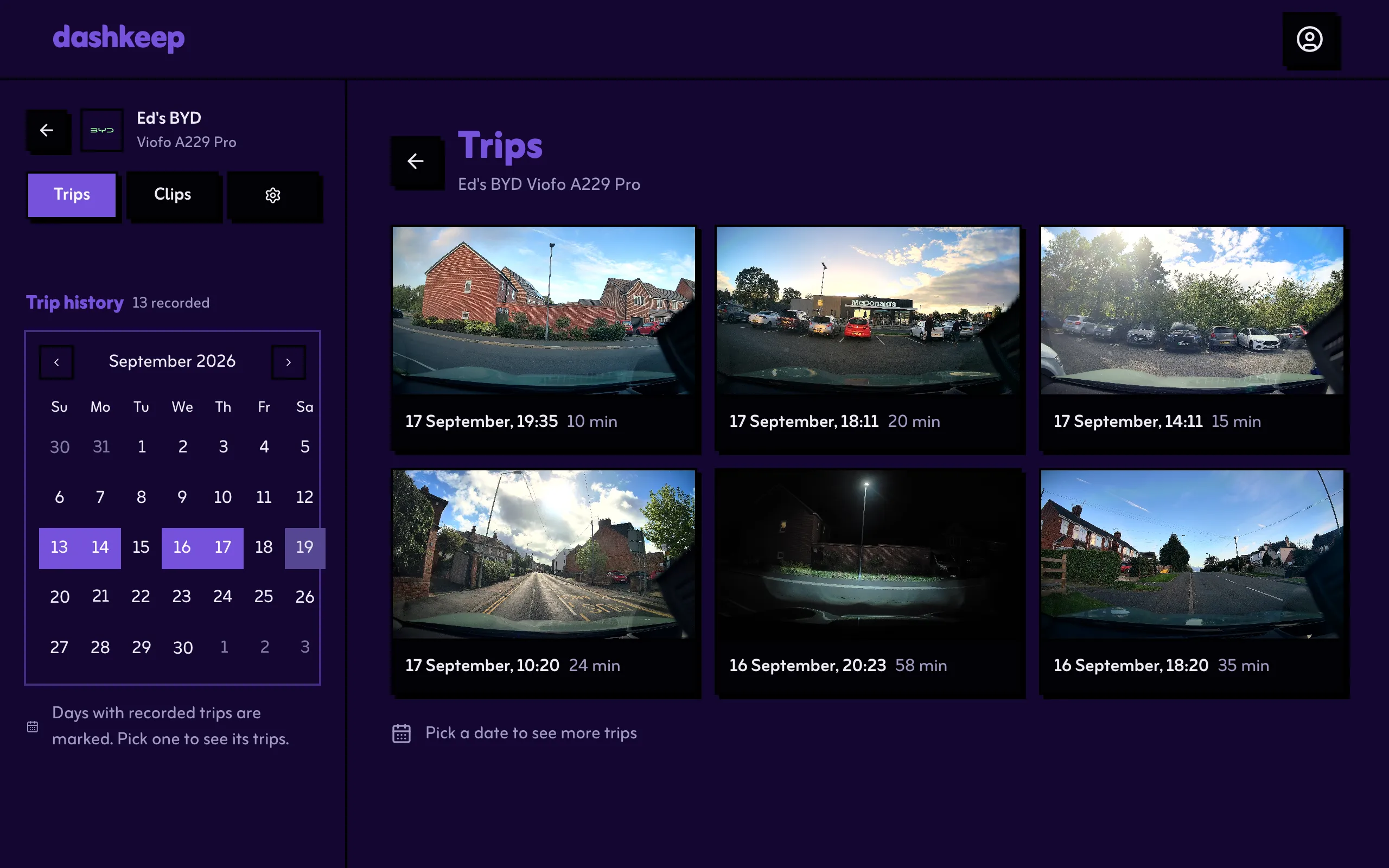
The landing view
Section titled “The landing view”Pick a device, and the main area shows its six most recent drives as cards: thumbnail, date, time, length, and the route. DashKeep shows “Start to End” when it can geocode the route. Rest the pointer on a card for a moment, and an animated preview from the middle of the drive plays in its place.
Before you upload anything, the page shows the message “No trips recorded yet. Your drives appear here as your dashcam uploads them.”
Browsing by day
Section titled “Browsing by day”The calendar marks every day with recorded trips. The arrows on top walk back month by month. DashKeep fetches older history as you browse, and the calendar fills in as far back as the device has uploaded. The header shows the recorded total.
Select a day to list its drives, newest first. Each row shows the time range, the length, and the route when DashKeep knows it. Lengths read like “24 min” or “1 h 12 min.” The row’s thumbnail behaves like the landing cards: rest on it, and the middle of the drive previews.
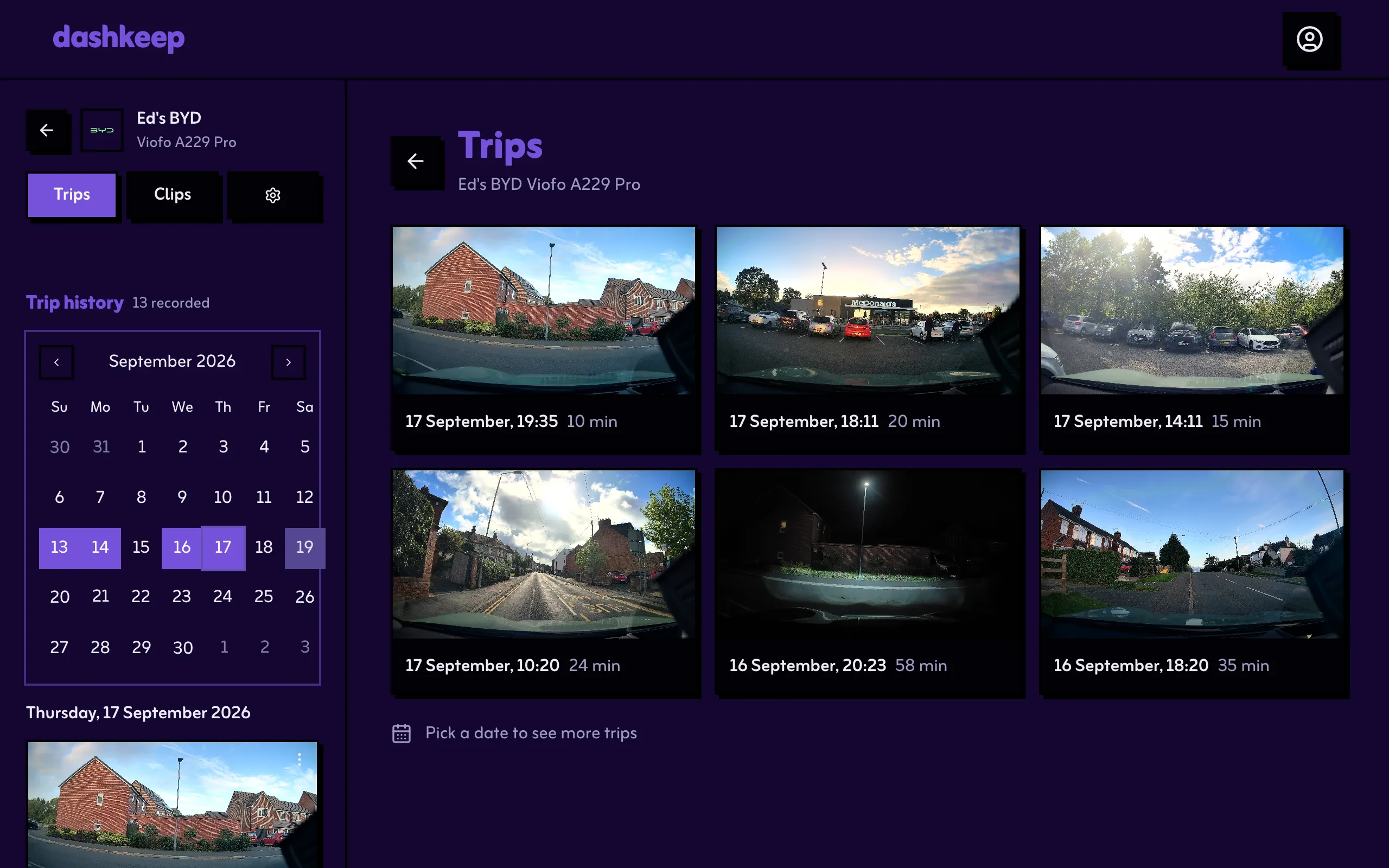
Each row has a 3-dot menu with Delete trip. The confirmation spells out what goes: Unprotected clips go with it. Protected clips are kept. This cannot be undone.
The rest of the trips page
Section titled “The rest of the trips page”- Watching a trip covers the player, the timeline, and annotations.
- The clips tab lists single files instead of whole drives.
- Protected and deleted clips covers locks, tombstones, and the delete warnings.
- Missing and archived footage covers the states between upload and playback.
- Exporting and sharing clips covers downloads, trimmed exports, and public links.