Exporting and sharing clips
Both tools live in the player’s More controls menu. Both encode the part of the trip you pick.
Exporting
Section titled “Exporting”Download in the More controls menu opens the Download clip dialog. Preview panes show the exact first and last frames of the selection, and the Trim range sliders choose the start and end. The readout shows Start, Duration, and End. The checkboxes pick the extras: Burn overlays into video for the speed and clock, Include annotations when any exist, and Include audio. The Quality choice is High or Max: “High downloads quicker and smaller. Max keeps the original quality.”
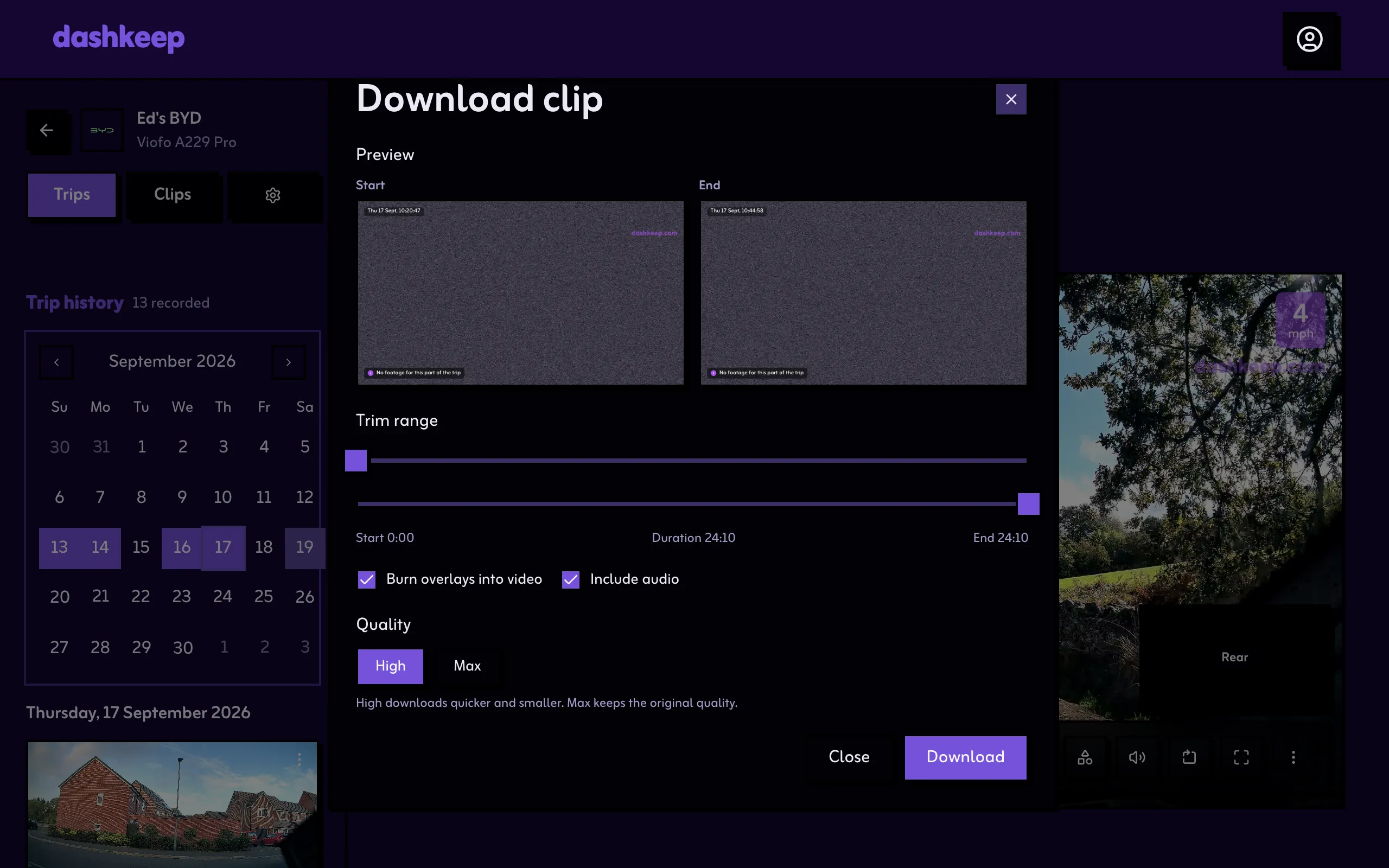
Select Download, and DashKeep encodes the section as you see it on stage, for the selected camera. A progress bar tracks Preparing, Processing and Finalizing, with a note to “Keep this tab active while it processes. It could take several minutes.” The finished file goes to your downloads, and the dialog shows its name. Closing the dialog or the tab cancels an export in progress.
Sharing a clip
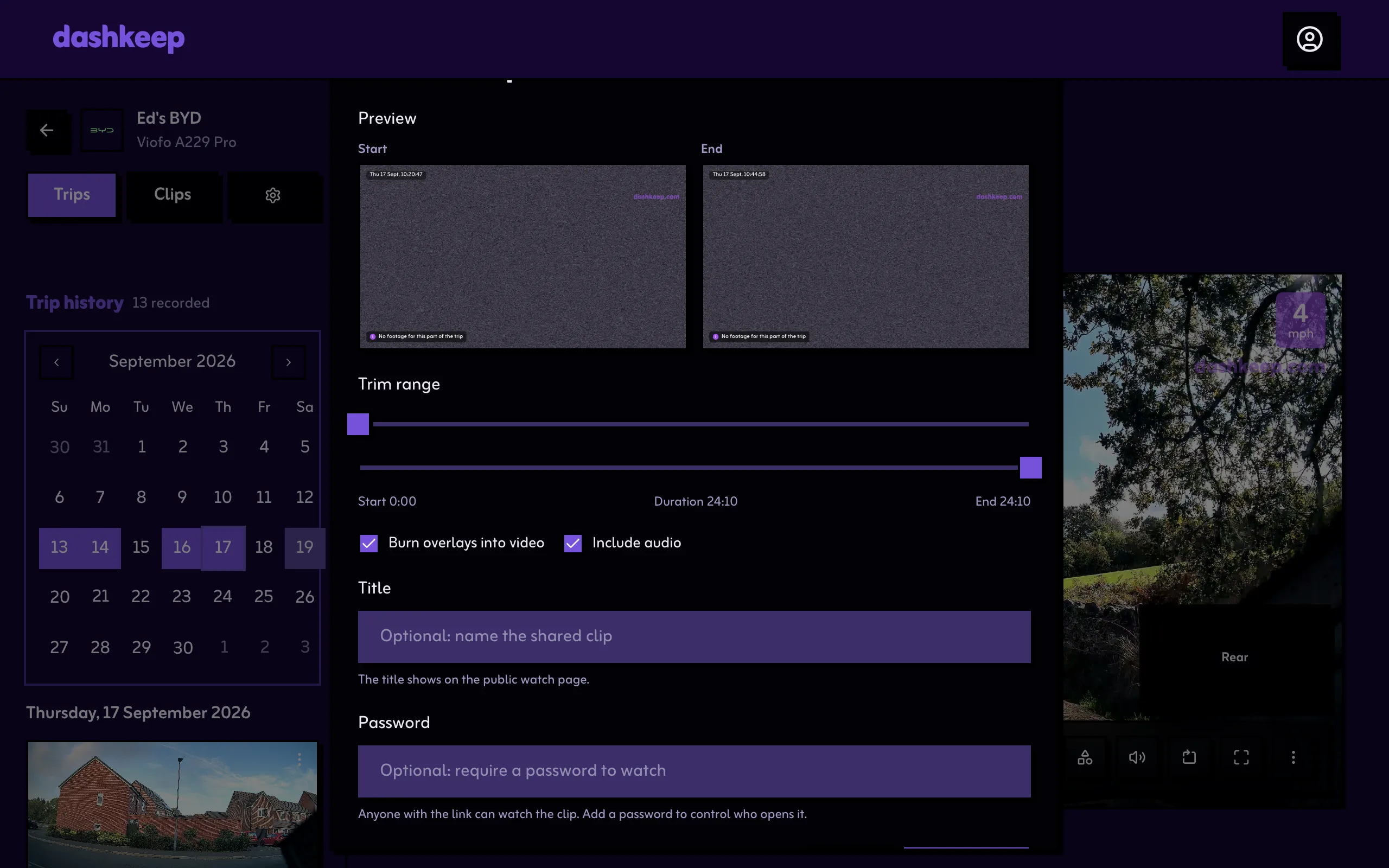
Section titled “Sharing a clip”Share link in the More controls menu opens the same dialog in share mode. DashKeep encodes the trimmed section at High quality and uploads it as its own clip on your account. The original remains untouched. Before creating the link you can set:
- Title:
Optional: name the shared clip. The title shows on the public watch page. - Password:
Optional: require a password to watch. Anyone with the link can watch the clip. Add a password to control who opens it.
Selecting Create link first shows “Creating your sharing link…” The page then confirms that the share worked. The link goes live once processing finishes. The new clip’s own page shows the link card: the vdash.cam address, Copy link, Set password or Remove password, Remove link, and a live view count. A live link freezes the clip’s other actions, with the note Remove the public link before making changes to this clip. Remove link asks Remove the public link? Anyone with the link loses access. Removing the link is permanent. You can’t restore a deleted link.
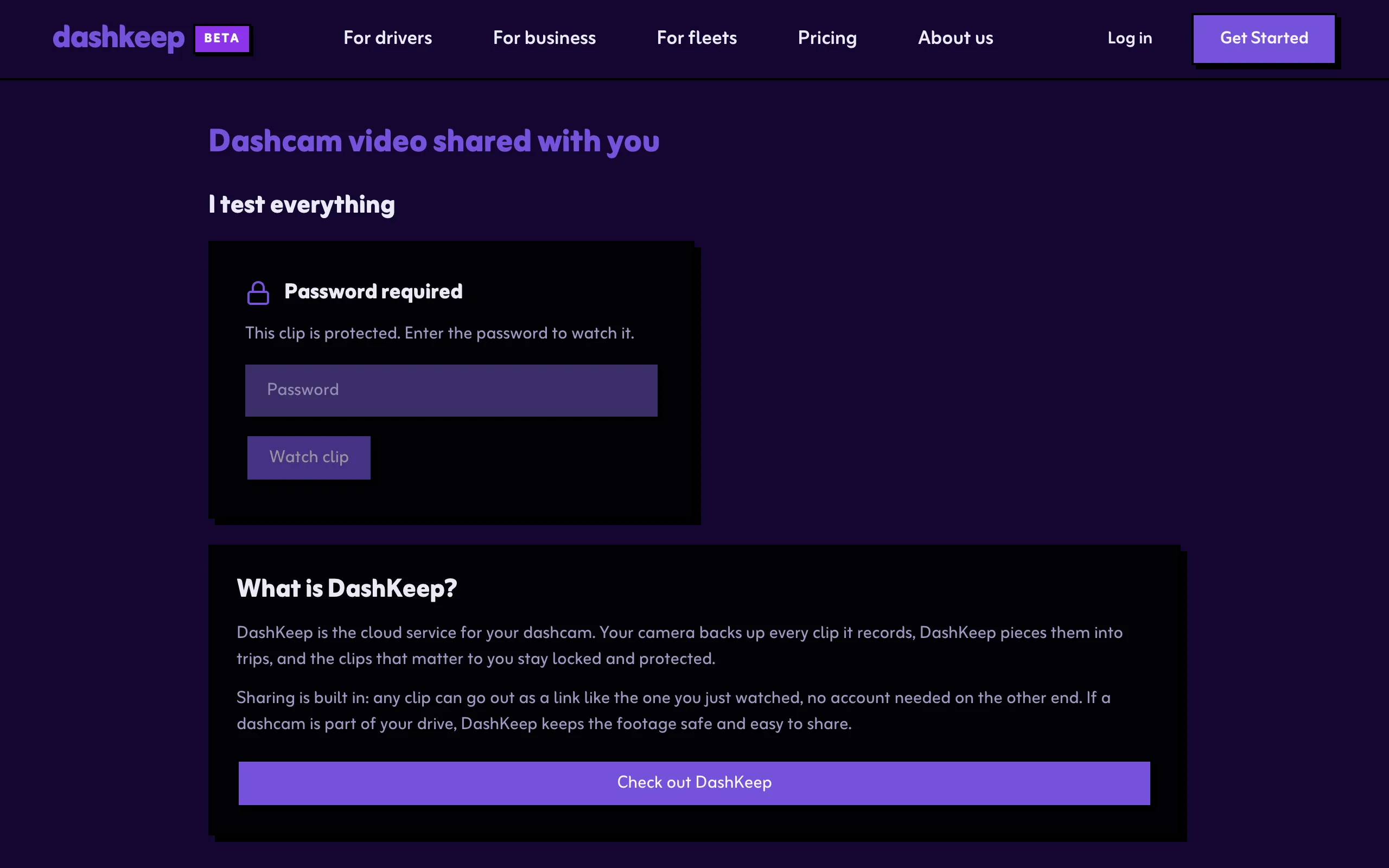
Anyone with the link can watch it in a browser, and the viewer doesn’t need a DashKeep account. A password gate appears when you set one, and a download button provides the MP4.