Plan and what happens next
Step 8: Plan
Section titled “Step 8: Plan”Pick the plan for this device: DashKeep Cloud, or the self-hosted Community Edition if you want uploads to go to your own S3 bucket. The page also handles annual and monthly billing, plus promo codes. Community Edition has one extra step. After payment, the wizard sends you to the device’s settings page. There, you connect your own bucket. See Connecting your device.
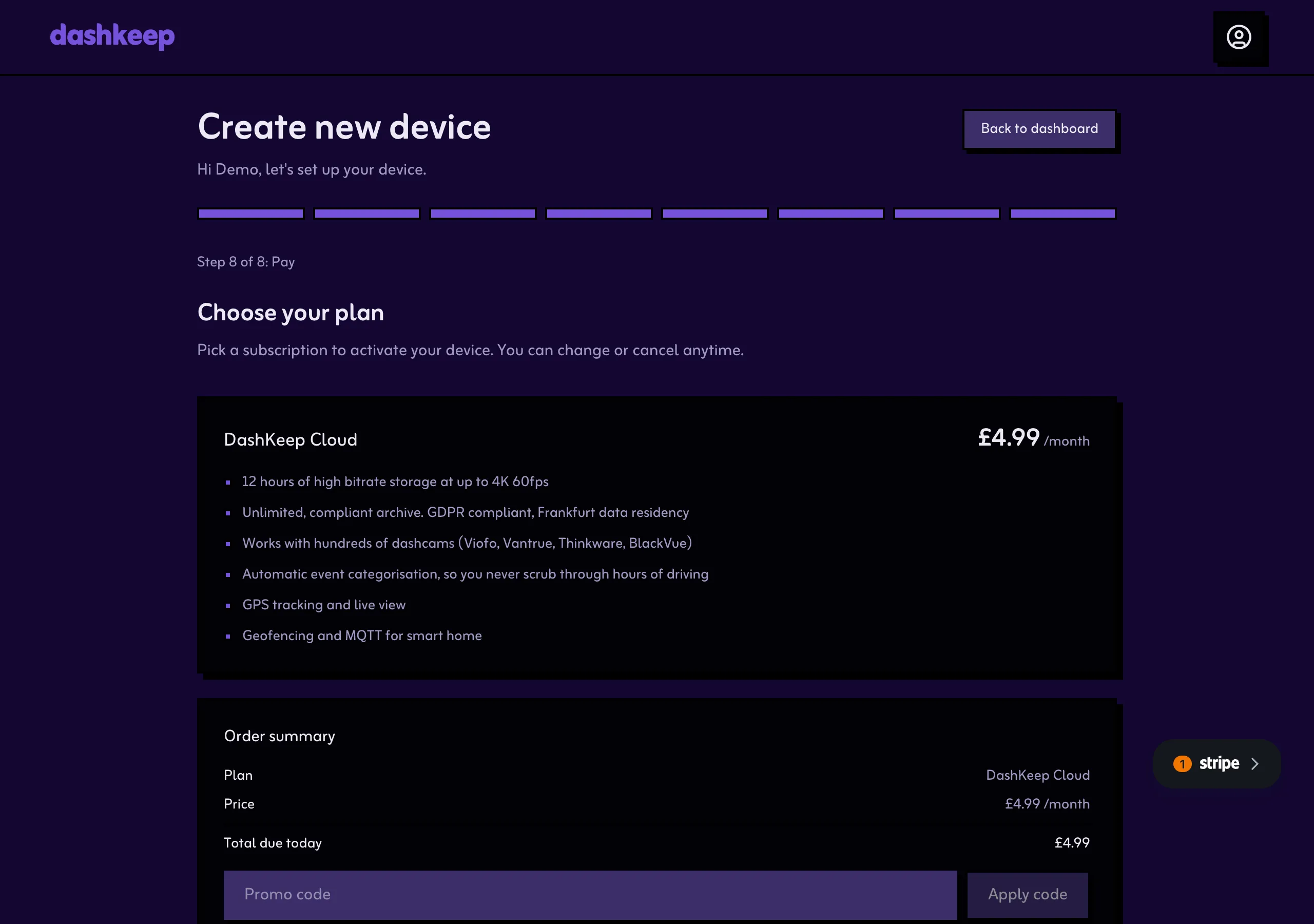
Select Finish and you’re back on the dashboard with a live device. That’s the end of the wizard.
What happens on the camera
Section titled “What happens on the camera”Powering the camera on with the new card triggers a firmware update. It takes a few minutes. The screen shows the maker’s normal update message. The camera installs the patched firmware, then reboots itself. The launcher starts the agent, the agent joins one of your Wi-Fi networks, and the first backup begins. Step 7 of the wizard tracks the first connection as it happens. It all runs on its own.
From then on, DashKeep keeps itself updated. The agent downloads new versions on its own and installs them. You never update anything by hand.
If you get interrupted
Section titled “If you get interrupted”A reload doesn’t lose your progress. The device you were creating remains on the account as unfinished, and the wizard offers to continue where you left off. The device key only exists in the browser that created it. If you continue in a different browser, the wizard re-creates the device with a fresh key automatically, so the only cost is repeating the install step.