The advanced menu
DashKeep has its own menu on the camera’s screen. Press the Wi-Fi button twice, and the menu replaces the normal view. The button works like a double-click: two short presses, close together, open it.
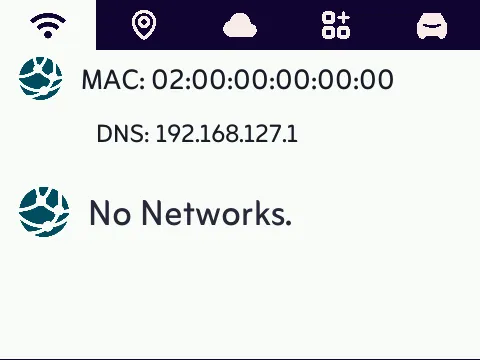
Opening the menu cancels any upload in progress. The upload resumes on its own later. The menu remains open until the camera restarts.
Getting around
Section titled “Getting around”The A229 Pro’s buttons map to the menu like this:
| Physical button | In the menu |
|---|---|
| Wi-Fi, pressed twice | Opens the menu. A short press moves to the next tab |
| Wi-Fi, held | Goes back to the previous tab |
REC |
Moves up to the previous item |
LOCK |
Selects the highlighted item |
MIC |
Moves down to the next item |
The tabs
Section titled “The tabs”Each tab has its own page in this section:
- The network tab shows the camera’s Wi-Fi in real time.
- The locations tab shows the GPS fix and your home zones.
- The storage tab shows where the footage goes.
- The applications tab shows the software running on the camera.
- The about tab shows versions, licence details, and the camera’s log.
Cameras without a screen
Section titled “Cameras without a screen”The menu only exists on cameras with a screen. On models with no screen, like the VS1, the Wi-Fi double press does nothing, DashKeep never pauses the recording to show a menu, and everything the tabs display is available in your web dashboard instead. See cameras without a screen.